
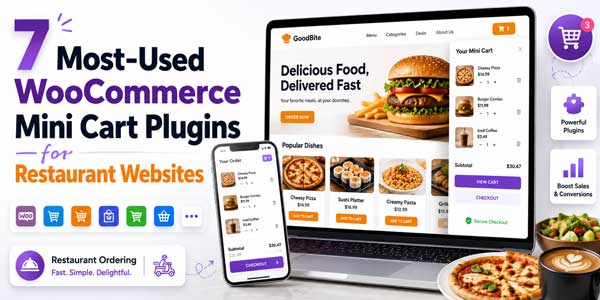
A slow, cluttered cart page costs restaurants real orders. Hungry customers close the tab the moment checkout feels like work, and a default WooCommerce cart makes them click through 2-3 extra pages just to confirm a food order. A mini cart plugin fixes this by showing order contents in a slide-out panel, floating icon, or fixed bar, so customers can review and pay without leaving the menu page.
This guide covers the most-used WooCommerce mini cart plugins for restaurant websites, comparing each on features, checkout speed, and how well it handles restaurant-specific needs like delivery and order routing.
Table of Contents
What Are the Top-Rated Mini Cart Plugins for WooCommerce?
Restaurant sites lose orders when the cart hides on a separate page instead of staying visible while customers browse the menu. Generic WooCommerce cart plugins for restaurants solve the display problem but ignore restaurant-specific needs like delivery zones, pickup scheduling, and kitchen order routing- the kind of logic a true restaurant WooCommerce ordering plugin or WooCommerce food ordering plugin builds directly into the cart.
Experts recommend a few trusted mini cart plugin WooCommerce options for this job: RestroFood, XT WooCommerce Mini Cart, Side Cart WooCommerce (Ajax), WPC Side Cart for WooCommerce, Sticky Add To Cart for WooCommerce, Cart Icons with Mini Cart for WooCommerce, and Advanced Cart for WooCommerce. Together, these cover the range from lightweight side cart WooCommerce drawers and sticky add to cart WooCommerce bars to a full WordPress restaurant plugin built around food ordering.
Why a Slow Cart Costs Restaurants Real Orders
A slow or hidden cart costs restaurants orders because food customers decide fast, often on mobile, and abandon an order the moment checkout adds an extra click or page reload. A mini cart plugin fixes this by keeping order contents visible on screen at all times, letting customers adjust quantities in place, and leading straight to checkout without loading a separate cart page.
WooCommerce’s default cart page interrupts this flow; it forces a page load just to view the order, which food-delivery customers won’t wait for. A well-built mini cart removes that step entirely, keeping the cart one click from payment and recovering orders that would otherwise get abandoned mid-browse.
7 Best WooCommerce Mini Cart Plugins for Restaurants:
1.) RestroFood – Best WooCommerce Mini Cart Plugin for Restaurant Websites:
RestroFood is a WooCommerce plugin that adds a food-ordering mini cart to restaurant websites, with 3 built-in cart styles and a same-page checkout. Customers add menu items, build combo orders with extras, and pay without leaving the page or loading a separate checkout screen.
Key features:
- 3 Cart Styles Included: Canvas Model, Footer Fixed, and Beside Products; each keeps the cart visible while customers browse the menu
- Same Page Cart & Checkout System: customers order and pay from the same page, with no separate checkout page load
- Customizable Menu Grid: 2, 3, or 4 column layouts, with custom extras, add-ons, and brand colors
- Product Extra Option: customers add combo extras and see the updated price instantly inside the cart
- Order Management System: orders route directly to dashboards for shop owners, branch managers, kitchen staff, and delivery drivers
- Delivery Availability Checker: verifies delivery zones by address or zip code before checkout
Best for: Restaurants, cafes, and cloud kitchens that need a mini cart built for food ordering extras, delivery zones, and order routing rather than a generic WooCommerce cart.
Pricing: Free version (RestroFood Lite) available. RestroFood paid plans start at $75/year; the bundle plan starts at $199/year.
2.) XT WooCommerce Mini Cart:
XT WooCommerce Mini Cart adds a floating cart icon with a live item count and a slide-out panel, giving shoppers a quick view of cart contents from any page on the site.
Key features:
- Floating cart icon with live item counter
- AJAX-based cart updates without page reloads
- Customizable icon position and colors
- Slide-out panel showing cart contents and subtotal
- Lightweight, works with most WooCommerce themes
3.) Side Cart WooCommerce (Ajax):
Side Cart WooCommerce (Ajax) opens a sliding cart drawer from the side of the screen whenever a customer adds an item, keeping the browsing page open in the background.
Key features:
- Slide-in cart drawer triggered on add-to-cart
- AJAX add-to-cart with no page reload
- Basic upsell/cross-sell display inside the drawer
- Customizable drawer width and trigger behavior
- Free version covers core slide-out functionality
4.) WPC Side Cart for WooCommerce:
WPC Side Cart for WooCommerce provides a persistent side cart panel with quantity controls, aimed at reducing the clicks between adding an item and reaching checkout.
Key features:
- Persistent side panel cart icon
- In-panel quantity adjustment and item removal
- Free shipping progress bar option
- Customizable panel styling
- Compatible with major page builders
5.) Sticky Add To Cart for WooCommerce:
Sticky Add To Cart for WooCommerce keeps an add-to-cart bar fixed at the bottom or top of the screen as customers scroll, reducing the distance to checkout on long menu pages.
Key features:
- Sticky bar fixed on scroll
- Product image, price, and quantity selector in the bar
- Customizable bar position and trigger point
- Mobile-responsive layout
- Basic style customization options
6.) Cart Icons with Mini Cart for WooCommerce:
Cart Icons with Mini Cart for WooCommerce focuses on a simple header cart icon with a dropdown preview, a lightweight option for sites that just need basic cart visibility.
Key features:
- Header cart icon with item count badge
- Dropdown preview of cart contents on hover or click
- Multiple icon style choices
- Lightweight footprint, minimal settings
- Basic AJAX cart count updates
7.) Advanced Cart for WooCommerce:
Advanced Cart for WooCommerce combines a mini cart widget with basic cart-abandonment features, aimed at recovering customers who add items but don’t complete checkout.
Key features:
- Mini cart widget with item preview
- Basic cart abandonment tracking
- Customizable widget placement
- Coupon field inside the mini cart
- Simple reporting on cart activity

Expert Opinion: How the 7 Plugins Actually Compare?
No single mini cart plugin fits every restaurant site; the right pick depends on whether the site just needs a better-looking cart or needs the cart connected to delivery zones, kitchen routing, and checkout. Here’s a straight read on where each one stands.
RestroFood is the only plugin on this list built around food ordering rather than general retail. Its cart understands product extras and combo builds, checks delivery zones before checkout, and hands orders straight to kitchen and delivery dashboards all inside one plugin, with a same-page checkout that skips the usual cart-to-checkout page jump. That makes it the strongest fit for a restaurant that wants its cart, delivery logic, and order management running as one system instead of stitched-together plugins. The trade-off: it’s a full restaurant-ordering plugin, not a lightweight add-on, so it’s overkill for a site that just wants a nicer-looking cart icon on an otherwise simple WooCommerce store.
XT WooCommerce Mini Cart does one job well: a floating icon with a live count and a slide-out panel, with a light footprint. It’s a solid pick for a site that only needs better cart visibility and nothing else. It has no idea what a delivery zone or a kitchen order is, so a restaurant still needs separate plugins or manual work for anything beyond showing the cart.
Side Cart WooCommerce (Ajax) covers similar ground with a slide-in drawer triggered on add-to-cart, plus basic upsell display. It works fine as a general-purpose cart drawer, but like most plugins on this list, it treats a food order the same as any other WooCommerce product: no extras logic, no delivery awareness.
WPC Side Cart for WooCommerce adds a persistent panel with in-cart quantity editing and a free-shipping progress bar. The free-shipping bar is a retail feature that doesn’t translate to restaurant delivery fees, so it’s a better match for a food site with simple flat-rate delivery than one juggling zones or time slots.
Sticky Add To Cart for WooCommerce solves a narrower problem, keeping an add-to-cart bar visible on long menu-item pages rather than showing a full cart. It’s useful paired with a real mini cart, not as a replacement for one, since it only handles the single product a customer is currently viewing.
Cart Icons with Mini Cart for WooCommerce is the lightest option here: a header icon with a hover/click dropdown preview. It’s a reasonable choice for a small menu site that wants basic cart visibility and nothing more, but it doesn’t offer in-cart editing on par with the fuller-featured options above.
Advanced Cart for WooCommerce pairs a mini cart widget with basic abandonment tracking, which is genuinely useful for spotting where customers drop off. It’s aimed at recovering lost sales after the fact rather than preventing the drop-off in the first place, so it complements a good cart experience more than it replaces one.
The practical takeaway: for a restaurant site that just needs a visible, editable cart bolted onto an otherwise standard WooCommerce store, several of the lighter plugins above do the job fine. For a restaurant that wants the cart, delivery rules, and order routing working as one connected system rather than three separate plugins guessing at each other’s data, RestroFood is built for that specific problem in a way the others aren’t.
Final Thought:
The 7 plugins above split into two groups. Most of the cart icons, slide-out drawers, sticky bars, and abandonment trackers solve one specific piece of the cart experience well, and any of them can noticeably improve a restaurant site that just needs a visible, editable cart. A smaller group goes further and ties the cart to delivery zones, order routing, and checkout in one connected system. Which one fits depends on how far a restaurant wants its cart to reach: a simple visibility fix on an existing setup, or a cart that also understands delivery and kitchen operations behind it. Either way, the fix for a slow, hidden cart on a restaurant site rarely needs more than one well-chosen plugin.
Frequently Asked Questions (FAQs):
Why does my WooCommerce cart keep losing items on mobile?
This usually happens when a theme’s cart fragment cache conflicts with a mini cart plugin’s AJAX updates. Clearing the site’s page cache and confirming the mini cart plugin supports AJAX cart fragments resolves most cases. If the issue persists, check for a session-handling conflict with another cart or checkout plugin.
Can I add a mini cart without touching my theme’s code?
Yes. Every plugin on this list installs a working mini cart through settings alone, using either a shortcode, a widget, or an automatic floating icon. None require editing theme template files for basic setup.
Will a mini cart plugin slow down my restaurant’s menu page?
A lightweight, well-coded mini cart plugin adds minimal load time because it updates via AJAX instead of reloading the page. Heavier combinations, like stacking a mini cart plugin with a separate cart-abandonment plugin, add more scripts and can slow the page, so fewer plugins doing more of the job tend to load faster.
Do I need a separate delivery plugin alongside my mini cart plugin?
Depends on the plugin. Most standalone mini cart plugins only display cart contents and don’t check delivery zones or manage pickup times, so a restaurant using one of those still needs a separate delivery or ordering plugin. A handful of restaurant-specific cart plugins build delivery availability checks directly into the cart, which removes that second plugin.
What’s the difference between a mini cart and a sticky add-to-cart bar?
A mini cart shows the full order: every item, quantity, and subtotal, usually in a dropdown or slide-out panel. A sticky add-to-cart bar stays fixed on one product page and only handles adding that item, without showing the full cart contents.
Can customers edit quantities directly from the mini cart?
On most of the plugins listed here, yes, quantity controls and item removal work inside the cart panel itself. Confirm this specifically before choosing a plugin, since some lightweight cart icon plugins only preview the cart and require a page visit to edit quantities.
Does a mini cart plugin work with WooCommerce food ordering add-ons?
Compatibility depends on the specific combination. A generic mini cart plugin usually displays whatever WooCommerce sends it, but combo or extra-item pricing from food-ordering add-ons doesn’t always render correctly in a third-party cart panel. Cart plugins built specifically for food ordering avoid this gap because they handle both the cart and the extras logic themselves.
 About the Author:
I’m Mohammad Al Omayer, on a mission to help restaurant owners take back control of their food business- no commissions, no middlemen, just a system that works. As co-founder of ThemeLooks, I helped build RestroFood, a WordPress restaurant plugin trusted by 4,000+ food businesses worldwide. I’m passionate about making online ordering, delivery, and restaurant management simple enough for any owner to run on their own terms.













Be the first to write a comment.