
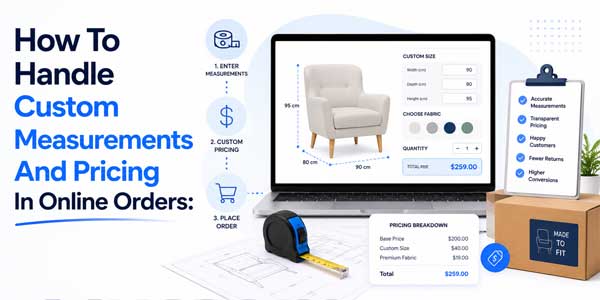
A customer visits your store. They need custom dimensions for a product. They have three options:
- Fill out a contact form and wait for a quote
- Guess at standard sizes and hope they’re right
- Find a competitor offering instant pricing
Most choose option three.
Custom measurements are common across many industries. Fabric by the yard. Rope by the foot. Mulch by the cubic yard. Lumber by the board foot. Engraving with custom text. Each requires different pricing calculations based on what the customer specifies.
The challenge is automating this. How do you calculate price dynamically based on customer input without manual intervention? How do you handle volume discounts, unit conversions, and stock tracking all in one system?
Multiple solutions exist. Some are effective but cumbersome. Some are easy but limited. This guide explores your options and shows you the solution that succeeds at both simplicity and power.
Table of Contents
Why Custom Measurement Pricing Matters?
Custom measurements drive revenue for many businesses. But handling them poorly loses sales.
Customers want instant pricing. When they must wait for a quote, they often shop elsewhere. E-commerce has trained customers to expect immediate answers. A competitor offering self-service pricing wins the sale even if your product is better.
Custom measurements also create an operational burden. Every custom order requires manual quoting, calculations, and communication back and forth. Your team spends time on administrative tasks that could be automated.
Inaccurate pricing damages both. Underpricing a large order costs profit. Overpricing drives customers away. Manual calculations invite errors.
Effective measurement pricing systems remove friction from sales while reducing administrative burden.
Solutions for Custom Measurement and Pricing: Comparing Approaches
Multiple approaches exist for handling custom measurements. Understanding the tradeoffs helps you choose correctly.
Solution 1: Manual Quoting Process
The simplest approach is to handle each custom order manually.
- How It Works: Customer contacts you requesting custom measurements and pricing. You receive their specifications. You calculate the price. You reply with a quote. They confirm or negotiate. You process the order.
- Effectiveness: High. You control every calculation. You can handle complex scenarios, negotiate, and customize pricing for specific customers.
- Ease of Implementation: Simple. No software needed. Just your ability to calculate.
- Ease of Use for Customers: Poor. Customers must contact you and wait for a response. Sales cycles extend. Some abandon.
- Scalability: Poor. As order volume increases, manual quoting becomes unsustainable. Your team spends all its time quoting rather than fulfilling.
- Verdict: Effective but not easy. Works for low-volume custom orders but breaks down as volume increases.
- Cost: Free software-wise, but high labor cost.
Solution 2: Simple Form Plugin
A basic form plugin collects measurement information, which you manually process.
- How It Works: Install a simple form plugin. Create a form requesting measurement inputs. Customers submit the form. You receive submissions and manually calculate pricing.
- Effectiveness: Moderate. You still control calculations, but the process is slightly more organized.
- Ease of Implementation: Moderate. Simple form plugins are easy to install, but you’re still doing manual math.
- Ease of Use for Customers: Better than email. Customers fill a form and submit. But they still don’t see pricing immediately. They must wait for your response.
- Scalability: Poor. You’re still doing manual calculations. Volume still creates bottlenecks.
- Verdict: Easy but not super effective. Better organizational structure, but fundamentally still manual.
- Cost: $0-50/month for a basic form plugin.
Solution 3: Third-Party Measurement Tools
Services like specialized measurement pricing tools integrate with WooCommerce to handle calculations.
- How It Works: You configure measurement rules and pricing formulas in a third-party service. Customers enter measurements on your product page. The service calculates pricing and passes it back to your store.
- Effectiveness: High. Sophisticated calculations and formulas automate the process.
- Ease of Implementation: Moderate. Setup requires configuring pricing rules and formulas.
- Ease of Use for Customers: Excellent. Customers see instant pricing.
- Scalability: Good. Handles volume without manual intervention.
- Verdict: Effective but not easy. Powerful automation but complex setup and integration challenges.
- Cost: $200-500/month typically. Integration can be complicated and require developer assistance.
Solution 4: Custom Development
Build a custom solution tailored to your exact requirements.
- How It Works: Hire developers to build a custom measurement pricing system integrating with WooCommerce.
- Effectiveness: Extremely high. Fully customized to your business.
- Ease of Implementation: Difficult. Requires detailed specification and development time.
- Ease of Use for Customers: Excellent if done well.
- Scalability: Excellent. Can scale to any volume.
- Verdict: Effective but not easy. Powerful but expensive and time-consuming.
- Cost: $5,000-50,000+ depending on complexity.
- Maintenance: Ongoing. You own all bugs and updates.
Solution 5: WooCommerce Measurement Price Calculator
A dedicated WooCommerce plugin built specifically for measurement-based pricing.
- How It Works: Install the plugin. Configure measurement types and pricing formulas for your products. Customers enter measurements. The system calculates pricing automatically and instantly.
- Effectiveness: Extremely high. Built specifically for measurement pricing. Handles all calculation scenarios.
- Ease of Implementation: Easy. Simple configuration interface. No coding required.
- Ease of Use for Customers: Excellent. Instant pricing. No waiting.
- Scalability: Excellent. Handles unlimited volume automatically.
- Verdict: Both effective and easy. The sweet spot is combining power with simplicity.
- Cost: $300-600/year, typically. Much cheaper than custom development.
- Maintenance: Plugin developers handle updates and support.
The Measurement Price Calculator: A Top Pick
Among these solutions, the WooCommerce measurement price calculator plugin strikes a unique balance of being both powerful and simple.
It’s not a generic form plugin requiring manual work. It’s not an expensive custom solution requiring developers. It’s specifically built for measurement-based pricing, which means every feature serves measurement businesses.
The plugin’s power comes from formula-based pricing. You don’t create static price lists. You define formulas that calculate prices based on measurements. A formula might be: (Length * Width * Price Per Square Unit). As customers change length and width, the formula recalculates automatically.
This formula approach handles complexity. Volume discounts, unit conversions, tiered pricing, and fractional measurements are all handled by formulas that adjust based on customer input.
The ease comes from the simple interface. No coding. No complex configuration. Point-and-click setup. If you can configure products in WooCommerce, you can configure measurement pricing.
How the Measurement Price Calculator Works: The Process?
Understanding how the plugin works helps you appreciate its effectiveness.
Step 1: Choose Your Measurement Type
The plugin supports nine measurement types: length, weight, area, square area, box, volume, and surface area. Each type has built-in formulas for the most common calculation scenarios.
You select which type applies to your product. For rope, select a length. For mulch, select volume. The plugin knows how to calculate for that type.
Step 2: Define Your Pricing Formula
This is the power. Instead of static pricing, you define how the price relates to the measurement.
A rope product might use: Measurement (in feet) × $0.50 = Price. A customer orders 100 feet. The system calculates 100 × $0.50 = $50.
A fabric product might use: Length (feet) × Width (feet) × $2.00 = Price. A customer orders 10 feet long, 5 feet wide. The system calculates 10 × 5 × $2.00 = $100.
Formulas can be simple or complex, depending on your pricing logic.
Step 3: Set Up Tiered Pricing
For most businesses, pricing tiers reward volume. The measurement price calculator handles this with pricing tables.
Create measurement ranges with different unit prices:
0-50 units: $2.00 per unit 51-100 units: $1.80 per unit 101+ units: $1.50 per unit
As customers adjust their measurement input, the system identifies which tier they fall into and applies that pricing automatically.
Step 4: Customers Enter Measurements
On the product page, customers see input fields for measurements. Depending on the measurement type, they might enter one dimension (for length), two dimensions (for area), or three dimensions (for volume).
Step 5: Price Calculates in Real-Time
As customers adjust measurements, pricing recalculates automatically. They see the total cost update instantly. No lag. No waiting for server calculations.
This real-time feedback helps customers make decisions. They can see how the cost changes with different measurements. They can find the right balance between size and budget.
Step 6: Add to Cart
Once satisfied with measurements and pricing, customers add to the cart. The system captures their specific measurements and applies the correct price.
Step-by-Step Configuration Guide: Adjusting Pricing
Configuring measurement pricing properly is crucial. Here’s how to do it using the plugin’s interface.
Step 1: Convert Your Product to Measurement Type
Edit your product. In Product Data, change the product type from Simple Product to Measurement.
Two tabs appear: Measurement and Min/Max Quantity Value. Click the Measurement tab.
Step 2: Select Measurement Type and Units
In Measurement Settings, select your measurement type from the dropdown. Choose nine options: length, weight, area, square area, box, volume, surface area.
Select the Input Unit (what customers enter) and the Output Unit (how you price). For a rope product, customers might enter in feet (input), but you price per yard internally (output). The plugin converts automatically.
Step 3: Configure Pricing Labels
Set the Pricing Label displayed next to the price. For area products, use “per sq. ft.” For weight products, use “per lb.”
The label should match your pricing. Customers see it and understand how pricing works.
Step 4: Create Your Pricing Table
This is the core of your dynamic pricing. Click the Pricing Table tab.
Create rows representing measurement ranges and corresponding prices:
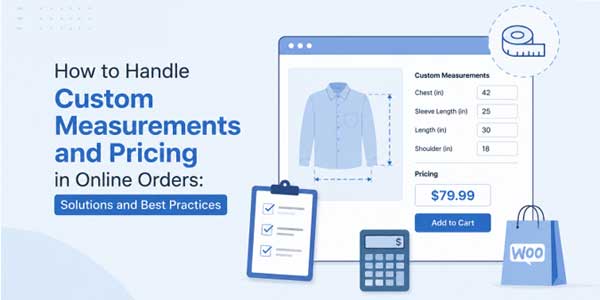
| Measurement Range Min | Measurement Range Max | Price Per Unit | Sale Price Per Unit |
| 0 | 50 | $2.50 | $2.00 |
| 51 | 100 | $2.00 | $1.50 |
| 101 | 500 | $1.50 | $1.00 |
| 501 | 9999 | $1.00 | $0.75 |
Each row represents a pricing tier. As customers specify measurements falling within a range, that range’s pricing applies.
Step 5: Set Minimum and Maximum Quantities
In Min/Max Quantity Value tab, set:
- Minimum Quantity: Smallest order you’ll accept
- Maximum Quantity: Largest order you can fulfill
- Price: Fallback price if customer’s measurement doesn’t match any range
These limits control order volume and ensure profitability.
Step 6: Enable Stock Management
Check “Manage Stock” to track inventory in your measurement unit. If selling rope in feet, inventory is tracked in feet. A customer ordering 250 feet deducts 250 feet from stock.
This prevents overselling and maintains accurate inventory.
Step 7: Test Your Configuration
On the product page, test different measurements. Verify that pricing calculates correctly. Try measurements at tier boundaries. Verify correct tiers apply.
Test minimum and maximum limits. Verify the system respects them.
Mobile test. Input fields should work smoothly.
Step 8: Launch
Once satisfied, your measurement pricing is live. Customers can order with instant pricing. No quotes. No waiting. No manual intervention.
Building Effective Pricing Formulas:
Creating effective pricing requires understanding your costs and market.
Understand Your Cost Structure
Different measurement volumes have different per-unit costs. Manufacturing 50 feet costs more per foot than manufacturing 500 feet. Account for this in your tiers.
Price Competitively
Research competitors’ pricing for measurement-based products. Your pricing should be competitive. If significantly higher, you need differentiation to justify it.
Test Pricing Tiers
Model different order sizes and calculate total revenue. Ensure your tiering maximizes revenue while incentivizing volume.
Be Transparent
Display your per-unit pricing clearly. Customers should understand the pricing formula immediately. Transparent pricing builds trust.
Account for Complexity
Complex custom orders might require manual handling. Set maximum limits reflecting your true capacity. Don’t take orders you can’t fulfill.
Advanced Features for Optimization
Beyond basic pricing, the measurement price calculator includes advanced features.
Support for Decimal and Fractional Input
Customers can enter precise measurements: 50.5 feet, 3.25 pounds, or fractional measurements (1/2, 3/4). The system handles all formats and calculates pricing accordingly.
Unit Conversion
If customers think in one unit and you price in another, the plugin converts automatically. Customers enter measurements in feet. You price in meters. The system handles conversion transparently.
Multilingual Support
The plugin supports WPML for international stores. Measurement labels and pricing calculations adapt to each language. International customers see everything in their language.
Flexible Input Methods
Choose free-form input (customers enter any value) or limited form (customers select from predefined options). This flexibility accommodates different product types and sales models.
Common Challenges and Solutions
Challenge: Customers Don’t Understand Tiered Pricing
Customers see different unit prices in different ranges and get confused.
Solution: Display your pricing table on the product page. A visual table makes tiering obvious and fair.
Challenge: Fractional Measurements Complicate Pricing
A customer orders 50.5 feet. How do you price the extra 0.5 foot?
Solution: The calculator handles fractional inputs automatically. Price is calculated based on exact measurement. Customers see the correct total instantly.
Challenge: Inventory Tracking Complexity
You track production in one unit, and customers order in another.
Solution: Use the stock management feature in your measurement unit. Tell the system the customers’ orders in feet. The system automatically converts to your internal unit for tracking.
Challenge: Complex Custom Orders
Some orders don’t fit standard pricing tiers.
Solution: Set a maximum order limit reflecting your true capacity. For exceptionally large or complex orders, offer a manual quoting option outside the automated system.
Best Practices for Measurement Pricing:
Display Pricing Clearly
Customers should see per-unit pricing prominently. If you price per square foot, show this clearly. Transparent pricing builds trust and reduces support questions.
Label Input Fields Explicitly
“Enter length in feet” is clearer than an unlabeled input box. Explicit labels prevent customer confusion and input errors.
Create Realistic Tiers
Tier boundaries should make sense to customers. Boundaries like 0-25, 26-50, 51-100 feel natural. Boundaries like 0-17 or 43-68 confuse.
Monitor and Adjust
After launch, monitor which measurement ranges customers order the most. If 80% of orders fall in one tier, your tier structure might be suboptimal. Adjust based on real data.
Communicate Changes
If you adjust pricing, communicate clearly to customers. Price increases or tier changes should be explained. Transparency maintains trust.
Measuring Success:
After implementing the measurement price calculator, track:
- Conversion Rate: Does conversion improve after removing manual quoting? Most stores see 20-40% conversion increase.
- Average Order Value: Do tiered pricing incentivize larger orders? Most see AOV increase 15-30%.
- Support Ticket Reduction: Do you receive fewer pricing questions? Automatic pricing should significantly reduce support burden.
- Order Processing Time: Can your team process orders faster without manual quoting? Time savings should be obvious.
- Customer Satisfaction: Survey customers on their experience. Most report satisfaction with instant, transparent pricing.
To Sum it up:
Custom measurements require intelligent pricing. Manual quoting is effective but doesn’t scale. Generic form plugins are easy but limited. Third-party services are powerful but complex and expensive. Custom development is powerful but extremely costly.
The WooCommerce measurement price calculator plugin succeeds where others struggle. It’s powerful enough to handle sophisticated pricing formulas, tiered pricing, unit conversions, and volume discounts. It’s simple enough that anyone configuring WooCommerce products can set it up without coding or developer assistance.
Customers see instant pricing based on their exact measurements. No waiting. No manual quoting. No friction.
Your business scales without manual intervention. Orders are processed automatically. Your team spends time on fulfillment, not quoting.
If your business sells measurement-based products, implementing a measurement price calculator removes a critical bottleneck. Start with your highest-volume products. Configure pricing tiers matching your cost structure. Test thoroughly. Then expand to your entire catalog.
Your conversion rates will improve. Your team’s productivity will increase. Your customers will appreciate transparent, instant pricing.
Make the move from manual measurement pricing to automated, intelligent pricing. Your business will scale dramatically.
 About the Author:
I’m Jeff Harrison. I’ve spent years exploring WooCommerce, mostly by testing plugins in real store environments and evaluating how they perform beyond their feature lists. I regularly work with various plugins, such as the WooCommerce measurement price calculator and other extensions that help store owners improve store functionality and the customer shopping experience. My focus is usually on what a plugin actually delivers after installation, how well its features hold up in everyday use, and whether it provides lasting value for store owners. Marketing promises don’t interest me much. Instead, I aim to give practical insights that help merchants decide whether a plugin is genuinely useful for their business or likely to be forgotten after the initial setup.













Be the first to write a comment.