
In today’s digital age, email is one of the most significant ways to talk to people. A lot of people and businesses utilize cloud-based email services to get their job done every day. Users may need to shift their emails from one cloud email service to another over time. This is called moving email to the cloud.
Cloud email migration can sound hard to people who are new to it, but it’s not. If you have the necessary tools and know-how, migrating your emails is easy and you won’t result in any data loss. This article talks about why people migrate emails, the several ways to do so, their drawbacks, and how to use a Cloud Email Migration Tool to migrate data safely.
Table of Contents
What Makes People Migrate Cloud Emails?
Users migrate their cloud email data for several reasons:
- Changing email providers: People switch to services that offer better features.
- Business growth: Companies improve their email systems so that more people can utilize them.
- Lowering costs: Some platforms have plans that are cheap.
- Better security: New email services keep your data safer.
- Improved performance: Users are drawn to faster access and improved uptime.
Email migration helps people stay productive without having to change the way they communicate, no matter what the cause is.
Ways to Migrate Cloud Email Data?
There are two basic approaches to migrating email data from the cloud:
1.) The Manual Way:
You can migrate your IMAP account to another IMAP account by manually using an email software like Outlook or Mozilla Thunderbird.
Steps:
- Set up an email client
Get Outlook or Thunderbird and install it on your computer.
- Add an IMAP account from Source
Use the IMAP server information to set up your old email account.
- Add an IMAP account for the destination
Set up the new email account in the same email program.
- Make sure both accounts are in sync.
Wait until everything, including folders and emails, is properly synced.
- Copy Emails
You can choose emails or folders from the source account and drag and drop them into the folders of the destination account.
- Check Data
Sign in to the email account you want to migrate to and make sure all of your emails have been migrated.
Drawbacks Of The Manual Method:
- Needs technological know-how
- Takes a long time for big mailboxes
- Chance of missing emails
- No advanced filter settings
- Not good for more than one account
- No guarantee that all data will be correct
This method is only good for modest cloud mail migrations, and beginners might not understand it.
2.) Using Migration Software Made for Professionals:
The goal of professional tools is to make the migration process easier. They let you migrate a lot of files at once, keep the folder structure, and keep your data safe.
GainTools Cloud Migration Tool is one of these dependable options.
It is a professional tool that helps people with cloud email migration. It is simple to use and works well for both new and experienced users.
Main Features:
- Supports migrating from IMAP to IMAP
- Migrate emails with attachments
- Keeps the folder structure
- Allows for bulk account migration
- Easy-to-use and simple UI
- Secure login verification
- No data loss during the migration
How to Use the Software?
- Get the Tool and Install It
To begin, get the software and set it up on your Windows PC.
- Start the Software
After you install the software, open it up. Its user-friendly interface will assist you in figuring out what to do next.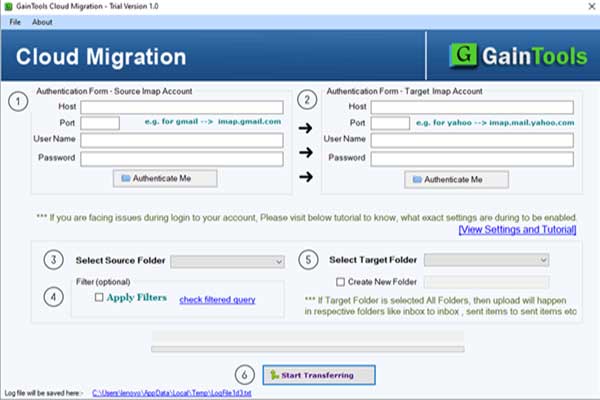
- Fill in the Source IMAP Information
In the source area, type in the host, port number, and login information for the email account you want to migrate.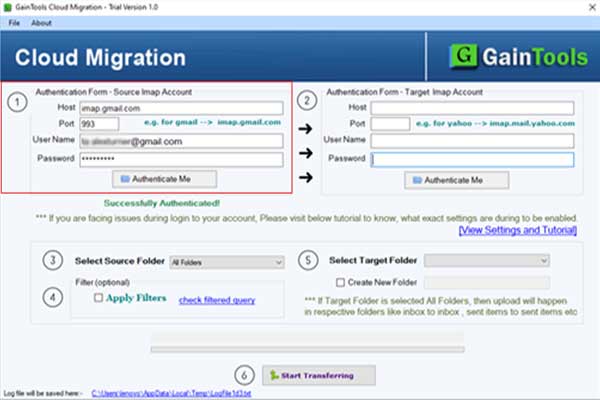
- Fill in the IMAP Details for the Destination
Next, give the email account you wish to migrate emails to the IMAP server host, port, and login information.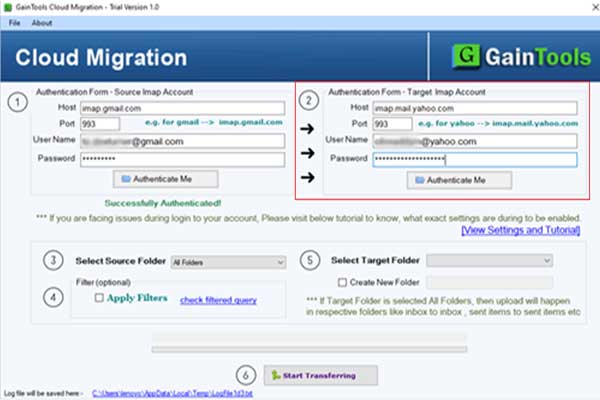
- Choose the email folders you want to use.
Select the folders from the source account that you wish to migrate.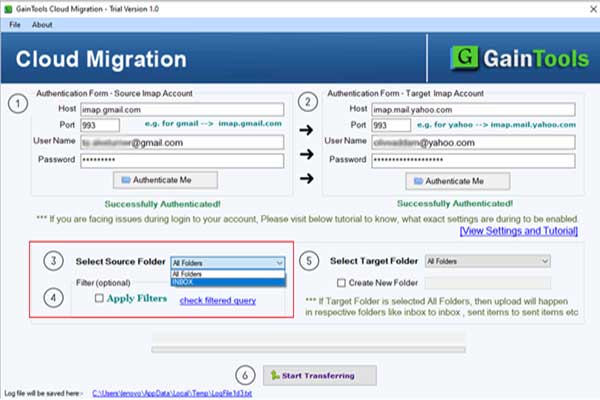
- Use Filters (Optional)
You can use filters to migrate only certain emails, like those from a certain date or folder.
- Start the Process
Click “Start Migration” and let the tool safely migrate your emails from the source IMAP account to the destination IMAP account.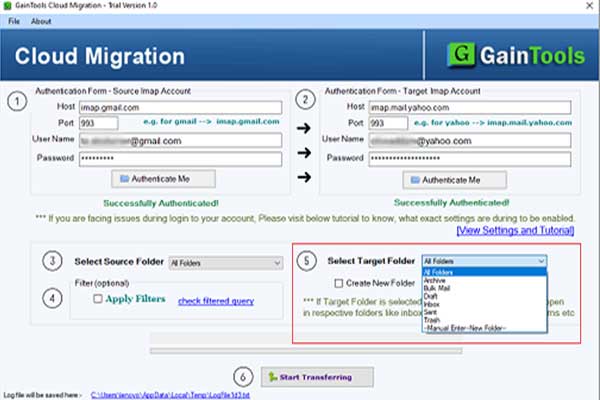
- Finish and Check
After the process is over, check your destination email account to make sure that all of the chosen emails and folders have been migrated successfully.
The tool will safely migrate all of the chosen emails from the source IMAP account to the destination IMAP account.
Why Using Software Is Better Than Doing Things Manually?
There are numerous benefits to using the tool instead of doing it manually:
- Saves time and work
- Simple for new users
- Works well with big mailboxes
- Lessens the chance of losing data
- Keeps the structure and metadata of emails
- Not necessary to be an expert in technology
- Can handle more than one email account
When dealing with huge or complicated data, manual approaches typically don’t work, but software does.
Final Thoughts:
Migrating your email to the cloud doesn’t have to be hard. Cloud mail migration emails are important to be accurate and safe, whether you’re a person or a corporation. For simple tasks, manual methods might work, but they have a lot of problems. The best way to have a smooth and safe experience is to use professional software.
Cloud Migration Tool makes it easy and safe to migrate IMAP to IMAP without losing any data. Even people who are new to email migration can do it with confidence because it has simple procedures and great capabilities.
Frequently Asked Questions (FAQs):
Q1. What does it mean to migrate from IMAP to IMAP?
When you migrate from one IMAP-supported email service to another, you maintain your folders and emails the same.
Q2: Is it safe to utilize the Cloud Migration Tool?
Yes, the software uses secure authentication and doesn’t keep track of user credentials.
Q3. Is it possible to move more than one account at a time?
Yes, the software can move a lot of IMAP accounts at once.
Q4. Will my attachments in the email be transferred?
Yes, all emails and attachments are moved.
Q5. Is this tool good for people who are just starting out?
Of course. It’s easy for beginners to use because the UI is simple.
 About the Author:
Hi there, I’m Sofia Greco. I work at GainTools Software as a technical writer. My main goal is to help users understand email migration challenges and provide simple, reliable solutions for cloud email migration.













Be the first to write a comment.