
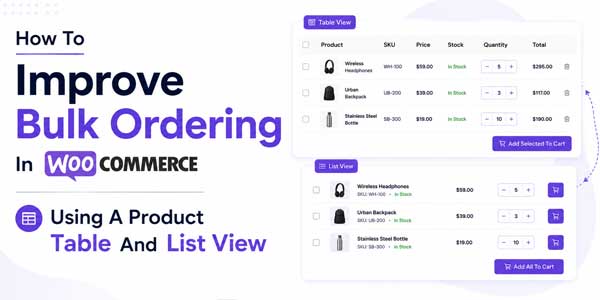
Your wholesale buyer needs to order 50 products. With your current WooCommerce shop layout, they must:
- Browse to find each product
- Click individual product pages
- Select variations if applicable
- Enter quantity
- Add to cart
- Return to browsing
- Repeat 50 times
By the time they’ve finished, they’re exhausted. They might abandon the order. Or they might call you to place it manually. Either way, your buying process is broken for bulk orders.
This scenario repeats across wholesale businesses, B2B operations, and high-volume retailers. The default WooCommerce shop layout, built for individual retail customers browsing and making one-off purchases, creates friction when bulk buyers need to order dozens or hundreds of products.
The solution isn’t changing your products or pricing. It’s changing how customers view and interact with your catalog. A WooCommerce product table plugin transforms bulk ordering from a tedious, multi-step process into a streamlined, efficient experience.
Table of Contents
Understanding the Bulk Ordering Problem:
Before exploring solutions, let’s clarify why bulk ordering is fundamentally different from retail shopping.
A retail customer browses leisurely. They look at a few products. They compare options. They read detailed descriptions. They make a single purchase decision. The WooCommerce product grid layout, beautiful images, detailed descriptions, and individual product pages serve this workflow perfectly.
A bulk buyer operates differently. They have a list. They need specific products. They need to order them quickly. They might be placing a weekly or monthly restock order. They don’t need lifestyle photography and flowery descriptions. They need efficient scanning, quick selections, and bulk operations.
The gap between these workflows creates operational friction. Bulk buyers who could place orders in 10 minutes instead spend 45 minutes navigating your catalog. Some abandon halfway through. Some call to place orders manually (which costs you time). Some switch to competitors with better bulk ordering systems.
Beyond customer experience, there’s also the quoting scenario. B2B and wholesale often involve custom pricing or quote-based orders. A customer needs to request quotes on multiple products, potentially dozens. With the default WooCommerce, they fill out a form for each product separately. A better system lets them request quotes on multiple products at once.
These problems, slow bulk ordering, multiple quote requests, and lack of efficient product scanning, are solved by implementing a proper WooCommerce table layout.
Why the Default WooCommerce Shop Doesn’t Support Bulk Ordering Well
The standard WooCommerce shop page displays products in a grid. This design has strengths for retail: visual browsing, detailed product images, and compelling product descriptions. These elements help casual shoppers discover products.
But they create friction for bulk buyers:
Navigation Overhead:
Each product requires clicking to view details. With 50 items to order, that’s 50 clicks before purchase. Multiply that across multiple ordering sessions, and the accumulated time is significant.
Limited Information Density:
The grid shows a few product details per screen. SKU, category, and key attributes might be hidden. Bulk buyers need this information to be visible without clicking.
Single-Product Focus:
Add-to-cart buttons on product pages work for one product at a time. Bulk buyers need to select multiple products and quantities simultaneously.
No Batch Operations:
When ordering 50 products, bulk buyers want to select multiple items and add them all to the cart in one action. The grid layout forces individual selections.
Poor Filtering for Large Catalogs:
With hundreds or thousands of products, browsing becomes impossible. Wholesale buyers need sophisticated filtering by category, price, attributes, and more. The default layout’s filtering capabilities are limited.
Mobile Experience Issues:
Wholesale operations often happen on mobile devices in warehouses or offices. The grid layout doesn’t translate well to mobile. Product information gets lost. Navigation becomes cumbersome.
These limitations don’t make WooCommerce bad. They just mean the default layout isn’t optimized for bulk operations. Different use cases require different interfaces.
How a WooCommerce Product Table Plugin Solves Bulk Ordering Challenges?
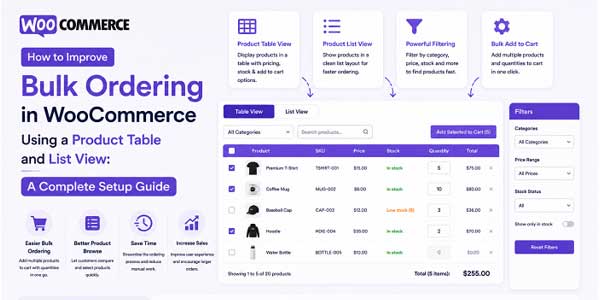
A WooCommerce product table plugin replaces the grid layout with a tabular interface. This seemingly simple change has profound effects on bulk ordering efficiency.
Efficient Product Scanning:
Instead of navigating through pages of grid items, all products are visible in a single, sortable table. Relevant columns, SKU, Price, Stock, and Attributes are displayed inline. Customers scan once and find what they need.
Bulk Selection Capability:
Checkboxes next to each row let customers select multiple products. Select all that apply. Enter quantities for each. Add them all to the cart in one action.
Integrated Quantity Management:
A quantity column lets customers enter quantities directly in the table. No separate product page needed. Update quantities as needed. Everything happens in one interface.
Rapid Filtering:
Filter dropdowns for category, price, attributes, and more let customers narrow results instantly. An AJAX-powered search bar filters as they type. Results update in real-time without page reloads.
Quote Request Workflow:
For B2B scenarios, customers select multiple products and submit a single bulk quote request. All selected items are included in the quote. No need to request quotes individually.
Column Customization:
Show exactly the information bulk buyers need. Hide unnecessary product descriptions. Display SKU, price, stock status, attributes. Create a focused interface for bulk operations.
Mobile Optimization:
Responsive design adapts the table to mobile devices. Bulk buyers on phones or tablets access the same efficient interface as desktop users.
These improvements transform bulk ordering from a 45-minute ordeal into a 10-minute task. Time savings compound across hundreds of orders monthly. Customers appreciate efficiency. Your fulfillment team appreciates larger, more frequent orders.
Installing and Setting Up a WooCommerce Product Table Plugin:
Implementation starts with installation. The process is straightforward for anyone comfortable with WordPress.
Step 1: Download and Install
Download the product table plugin ZIP file from your WooCommerce account. Navigate to WordPress Admin > Plugins > Add New. Click Upload Plugin and select your downloaded file. Click Install Now and then Activate.
After activation, you’ll see a new “Product Table & List” tab under WooCommerce > Settings.
Step 2: Understand the Settings Structure
The plugin organizes settings into five main areas:
- General Settings (configure default button labels and positions)
- Product Tables (create and configure individual tables)
- Display Settings (customize table appearance)
- Quote Requests (manage quote submissions if enabled)
- Quote Email Templates (customize quote notification emails)
This organization keeps settings manageable even as you create multiple tables.
Step 3: Configure General Settings
Navigate to WooCommerce > Settings > Product Table & List > General Settings.
Here, you set the default behavior that applies across all tables:
Button Labels:
- Add to Cart Button Text – What label appears on the add-to-cart button? “Add to Cart” is standard, but you could customize it to “Order Now” or “Add to Warehouse.”
- Read More Button Text – “Read More” links to full product pages. Customize if desired.
- Request a Quote Button Text – For B2B, customize to “Get Quote” or “Request Pricing.”
- Bulk Request a Quote Button Text – When customers select multiple products for quotes, this button appears.
- Bulk Add to Cart Button Text – When customers select multiple products for purchase, this button appears.
Bulk Operation Display:
- Bulk Button Text (Singular) – “Add 1 item for $X.XX” displays when one product is selected.
- Bulk Button Text (Plural) – “Add {items} items for {total}” displays when multiple products are selected. Use placeholders {items} and {total} for dynamic content.
Button Positioning:
- Bulk Button Position – Display bulk buttons above the table (recommended) or below.
- Bulk Request a Quote Position – Same positioning choice for quote buttons.
- Products Found Text Position – Show product count above or below the table.
Feature Toggles:
- Wholesale Variation Matrix – Enable this for B2B buyers. Instead of selecting one variation at a time, customers see a grid showing all variations with quantity fields. Select quantities for all variations simultaneously and add them all at once. This feature dramatically speeds up ordering for products with multiple variations.
Save these general settings. They apply globally unless overridden at the individual table level.
Creating Your First WooCommerce Product Table:
With general settings configured, create your first table. This is where you define which products display and how.
Navigate to WooCommerce > Settings > Product Table & List > Product Tables. Click “Add New Table.”
Step 1: Select Products to Display
First, decide which products appear in this table:
- Select All products – Include your entire catalog
- Select specific products – Choose individual products
- Select a category or multiple categories – Useful for department-specific tables
For a wholesale buyer, you might create a table showing all products. For a retail buyer interested in a specific category, you might create a table showing only that category.
This flexibility lets you optimize interfaces for different buyer types.
Step 2: Configure Table Columns
Decide which information displays in the table. The plugin provides columns for Image, Product Name, SKU, Price, Category, Stock, Quantity, and more.
Create a focused interface by selecting only relevant columns:
- Image – Shows product thumbnail
- Product Name – The product title
- SKU – Stock Keeping Unit for inventory tracking
- Price – Sale price or regular price
- Stock Status – In stock, low stock, out of stock
- Quantity – Selector for the buyer to input the order quantity
- Category – Product category
- Request a Quote – Quote button (if quote feature enabled)
Reorder columns using drag-and-drop. Most efficient layouts start with Image, then Product Name, SKU, Price, Quantity, and Action buttons.
Customize column labels if desired. Change “Product Name” to “Item” or “SKU” to “Item Number.” Match your business terminology.
Hide columns unnecessary for bulk buyers. Product descriptions, reviews, and detailed specs are irrelevant for wholesale reordering.
Step 3: Enable Search and Filtering
Filtering is crucial for bulk ordering efficiency. Enable these features:
Instant Search:
Check “Instant search” to enable a search bar above the table. As customers type, results filter in real-time via AJAX. Searching for “blue” instantly shows only blue products. This feature alone can reduce browsing time by 50% in large catalogs.
Filter Dropdowns:
Enable relevant filters:
- Category filter – Let customers refine by product category
- Brand filter – Filter by brand (if you use this taxonomy)
- Tag filter – Filter by custom tags
- Attribute filter – Filter by product attributes like size, color, and material
- Sort order filter – Sort by name, price, newest, popularity
- Price range filter – Show min/max price selector
Not all filters apply to all stores. Enable only the filters your bulk buyers would use.
Filter Behavior:
Choose between instant filtering (filters apply immediately as selections change) or apply-with-button (filters apply only when the customer clicks Apply). For bulk buyers, instant filtering is faster and more intuitive.
Always enable “Show clear filters button” so customers can reset filters with one click.
Step 4: Configure Bulk Operations
This is where the plugin truly accelerates bulk ordering:
Enable Bulk Add to Cart:
Check “Enable bulk add to cart” to add checkboxes to each product row. Customers check boxes next to products they want. A bulk button appears, showing selected items and the total price. One click adds everything to the cart simultaneously.
This single feature can reduce 20-minute ordering processes to 5 minutes.
Enable Bulk Request a Quote:
For B2B, check “Enable request a quote mode.” This adds quote buttons to each row. Customers select multiple products and submit a single bulk quote request containing all selected items. Quotes process more efficiently than individual requests.
Step 5: Configure Pagination and Display Options
For large product catalogs:
Pagination:
- Standard pagination – Traditional next/previous page buttons
- Infinite scroll – More products load automatically as the customer scrolls
For wholesale buyers, infinite scroll is often preferable. They keep scrolling and filtering without page reloads.
Products Per Page:
Set how many products display before pagination. 25 is reasonable for most stores. Adjust based on catalog size and screen real estate.
Responsive Mode:
- Card layout – Recommended for mobile. Products display as cards stacked vertically
- Stacked layout – Alternative mobile view where columns stack vertically
Test both and choose what works best for your mobile buyers.
Step 6: Configure Advanced Settings
For sophisticated bulk ordering scenarios:
User Role Visibility:
Restrict the table to specific user roles. Create separate tables for retail customers, wholesale customers, and partners. Each sees optimized interfaces for their use case.
A retail customer sees a product table with images, descriptions, and single-unit quantities. A wholesale customer sees an efficient bulk-ordering table. No confusion. No irrelevant information.
Override Shop Page:
Check “Override Shop page” to replace your default WooCommerce shop with this table. Customers land on the table instead of the grid. This is recommended for B2B-focused stores where everyone benefits from the table layout.
Override Product Archive Pages:
Check “Override Product archive pages” to apply the table layout to category and tag archive pages. Customers browsing a specific category see the table interface, making bulk operations within categories more efficient.
Variation Handling:
For products with variations (sizes, colors, etc.):
- Inline dropdown selects – Standard dropdown menus for selecting variations
- Inline radio buttons – Radio button options for selecting variations
Radio buttons work better when there are few options (2-5). Dropdowns work better when they have many options.
With the Wholesale Variation Matrix enabled in general settings, bulk buyers see a grid showing all variations with quantities, enabling ultra-fast bulk selection.
Customizing Table Appearance:
The WooCommerce product table plugin must match your store’s design. Display settings handle customization.
Navigate to WooCommerce > Settings > Product Table & List > Display Settings.
Layout Customization:
- Table Layout Style – Choose Bordered (lines between cells) or Borderless for a cleaner appearance
- Row Padding Vertical – Spacing above/below cell content (default 10px)
- Row Padding Horizontal – Left/right spacing in cells (default 12px)
- Default Header Height – Height of the header row
- Default Column Width – Minimum width for data columns
These spacing settings affect readability and aesthetics. More padding = more breathing room, but fewer products visible. Less padding = more products visible, but potentially cluttered.
Typography:
- Table Header Font Size – Size of column headers (default 14px)
- Table Row Font Size – Size of product data (default 14px)
- Description Length – Truncate product descriptions to this many words (default 15). Shorter lengths keep focus on bulk ordering.
- Product Image Size – Size of product thumbnails. Larger images help identification; smaller images save screen space.
For bulk ordering focused on efficiency, slightly smaller fonts and images are appropriate. For tables mixing bulk and discovery, larger fonts and images help.
Color Customization:
- Header background – Background color for the header row
- Header text – Text color in the header
- Row background – Background color for data rows
- Alt row background – Alternate row color for better readability (alternating stripes)
- Row text – Text color in data rows
- Border color – Color of table borders
- Hover button background – Button color when hovering
- Button background – Default button color
- Button text – Button text color
Choose colors that match your brand and provide good contrast. White text on a dark background is easy to read. Light gray text on a white background is harder to read.
Alternating row colors (white and light gray) makes it easier to scan rows horizontally. This is particularly helpful in wide tables with many columns.
Link Behavior:
- Link Product Name to Product Page – Make product names clickable to view the full product page. Useful if customers want detailed information. Unable to keep focus on bulk ordering.
- Open Product Link in New Tab – If product names are linked, open in new tabs so customers don’t lose the table view.
Advanced Display:
- Sticky Table Header – Keep column headers visible while scrolling. Essential for wide tables with many columns. Customers can always see which column they’re looking at.
- Hide Table Header – Remove header row entirely. Rarely used but available if needed.
- Show Table Footer – Repeat header row at the bottom of the table. Useful for very long tables where customers might forget column meanings.
For bulk-ordering focused tables, sticky headers are recommended. Sticky headers improve navigation in long product lists.
Setting Up Quote Requests for B2B:
For wholesale and B2B operations, quote requests are often more important than immediate purchases. The plugin handles this natively.
Enable Quote Functionality:
In your product table configuration, ensure “Enable request a quote mode” is checked. This adds quote buttons to each row and enables bulk quote requests.
Configure Quote Email Notifications:
Navigate to WooCommerce > Settings > Product Table & List > Quote Email Templates.
Admin Notifications:
- Enable Admin Email – Check this to notify admins when quotes arrive
- Admin Email Subject – Customize the subject line. Use {quote_id}, {customer_name}, {customer_email}, {site_name} placeholders for dynamic content. Example: “New Quote Request #{quote_id} from {customer_name}”
- Admin Email Body – Write the notification email. Include quote details and next steps. Example: “Customer {customer_name} ({customer_email}) has requested a quote. Quote ID: {quote_id}. Review and respond promptly.”
Customer Notifications:
- Enable Customer Email – Send confirmation email when customer submits quote
- Customer Email Subject – Example: “Quote Request Received #{quote_id}”
- Customer Email Body – Confirm receipt and set expectations for response time. Example: “Thank you, {customer_name}. We received your quote request and will respond within 24 hours.”
Email Styling:
Customize email appearance:
- Email Header Background – Header section background color
- Email Header Text Color – Text color in header
- Email Body Background – Content area background
- Email Body Text Color – Content area text color
Branded email templates feel professional and increase trust in your quoting process.
Managing Quote Submissions:
Submitted quotes appear in WooCommerce > Product Table and List > Quote Requests. View customer name, email, submission date, and quote contents. Delete entries when no longer needed.
This dashboard gives you central visibility into all quote requests, enabling efficient processing.
Best Practices for WooCommerce Table Bulk Ordering:
Implementation is just the start. Using the system effectively requires attention to several practices.
Optimize Your Product Data:
The WooCommerce product table displays product information you’ve already entered (SKU, price, categories, attributes). Ensure this data is complete and accurate.
- SKUs – Every product needs a unique, meaningful SKU. Bulk buyers use SKUs to communicate. “I need product SKU ABC123” is clearer than “I need the blue large T-shirt.”
- Categories – Logical category structure helps filter work effectively.
- Attributes – Use attributes consistently (Size: Small/Medium/Large, not S/M/L and size: small/med/big). Consistent attributes improve filtering.
- Stock Status – Accurate stock information prevents ordering out-of-stock items.
Garbage data in makes garbage filtering and sorting out.
Create Role-Specific Tables:
Different buyer types benefit from different layouts. Create separate tables:
- Retail Customer Table – All products, category filters, product descriptions, single-unit ordering
- Wholesale Customer Table – High-volume products only, SKU prominent, bulk operations, quote requests
- Partner Table – Custom pricing, specific products, partner-specific attributes
Use user role visibility to show each table to the appropriate audience.
Test Bulk Ordering Workflows:
Before going live, test the complete bulk ordering process as different user types. Try selecting 20 products, different quantities, and adding to the cart. Try submitting bulk quote requests. Verify emails arrive correctly.
Small issues discovered during testing prevent customer frustration.
Monitor User Behavior:
Use Google Analytics or built-in WordPress analytics to understand how customers interact with your tables:
- Do they use search or filters?
- Which columns are most viewed?
- How many products do typical bulk orders contain?
- What’s the average browsing time?
Use this data to optimize table configuration.
Gather Feedback:
Ask bulk buyers how the table is working. What’s fast? What’s slow? What’s missing? A five-minute conversation with a key wholesale customer yields insights you can’t get from analytics.
Optimize for Mobile:
Test the table on actual phones and tablets. Ensure bulk operations work smoothly on mobile. Many warehouse and field operations happen on mobile devices. Don’t neglect this experience.
Create Documentation:
Write a simple guide for bulk buyers explaining how to search, filter, and place bulk orders. Include screenshots. A two-minute read can prevent support questions.
Advanced Tips for Maximum Bulk Ordering Efficiency:
Beyond basic configuration, several advanced strategies unlock additional efficiency.
Use SKU Searching for Fast Lookup:
If your bulk buyers have SKU lists, they can paste or type SKUs in the search bar to find products instantly. This is much faster than browsing or filtering.
Ensure your SKUs are memorable and communicated clearly to customers. “GXR-001” is better than “7342” for recall.
Leverage Variation Matrix for Speed:
For products with multiple variations, the Wholesale Variation Matrix feature is a game-changer. Instead of selecting one variation at a time, bulk buyers see all variations displayed as a grid with quantity fields next to each. They enter quantities for multiple variations simultaneously and add them all to the cart in one action.
This single feature can reduce ordering time for variation-heavy products by 70%.
Use Custom Attributes for Segmentation:
Create custom product attributes that match your bulk buyers’ mental models. If your customers think in terms of “product line” or “supplier,” create those as attributes. Filtering by these attributes becomes intuitive for customers.
Implement Tiered Pricing:
Use WooCommerce’s pricing system to set tiered prices (different prices for different quantities). Display pricing alongside products in the table. Bulk buyers immediately see the value of larger orders.
This isn’t a product table feature, but leveraging pricing data in the table drives larger orders.
Use Categories Strategically:
Organize products into categories that mirror your bulk buyers’ organization. If a wholesale customer orders by department, mirror those departments as categories. Filtering by department becomes a natural shortcut.
Create Saved Carts:
If your WooCommerce implementation supports saved carts (some plugins add this), encourage bulk buyers to save common orders as carts. Repeat orders become one-click actions.
Monitor Abandoned Bulk Orders:
If customers select dozens of items and abandon checkout, investigate why. Was shipping calculated unexpectedly? Was the payment method missing? Did they get interrupted? Address friction points that cause abandonment.
Measuring Success: Metrics That Matter
After implementing bulk ordering tables, track these metrics to understand the impact:
Conversion Rate:
Are more visitors completing purchases? Bulk-ordering tables typically increase conversion rates by 15-35% for wholesale buyers.
Average Order Value:
Do orders contain more items? Bulk-ordering interfaces typically increase items-per-order by 20-50%.
Ordering Frequency:
Do customers place orders more frequently? Faster ordering workflows often increase order frequency.
Customer Satisfaction:
Send simple surveys: “How easy was placing your order?” Track satisfaction improvements.
Support Ticket Reduction:
Do you receive fewer “How do I order?” or “Can you help me find X?” support tickets? Efficient tables reduce support burden.
Wholesale/Bulk Revenue Growth:
Track revenue from wholesale customers specifically. Implement bulk ordering tables and watch this segment grow.
These metrics show whether your WooCommerce table implementation is delivering value.
Conclusion: Transforming Bulk Ordering From Friction to Efficiency
The default WooCommerce shop layout serves retail customers well. It’s not optimized for bulk buyers.
A WooCommerce product table plugin transforms bulk ordering from a tedious, time-consuming process into an efficient, streamlined experience. Customers order faster. You receive more orders. Both sides win.
Implementation requires modest effort: install the plugin, configure your first table, customize appearance, and go live. Optimization is continuous: monitor usage, gather feedback, and refine configuration.
The return on this investment is significant. Faster ordering increases customer satisfaction and repeat purchases. Larger, more frequent orders increase revenue. Reduced ordering friction means fewer support questions.
For any WooCommerce store with wholesale, B2B, or high-volume retail customers, a WooCommerce product table plugin should be a priority implementation.
Your bulk buyers are waiting for a better way to order. Give it to them.
 About the Author:
I’m Jeff Harrison. I’ve spent years exploring WooCommerce, mostly by testing plugins in real store environments and evaluating how they perform beyond their feature lists. I regularly work with various plugins, such as the WooCommerce product table plugin and other extensions that help store owners improve store functionality and the customer shopping experience. My focus is usually on what a plugin actually delivers after installation, how well its features hold up in everyday use, and whether it provides lasting value for store owners. Marketing promises don’t interest me much. Instead, I aim to give practical insights that help merchants decide whether a plugin is genuinely useful for their business or likely to be forgotten after the initial setup.












Be the first to write a comment.