

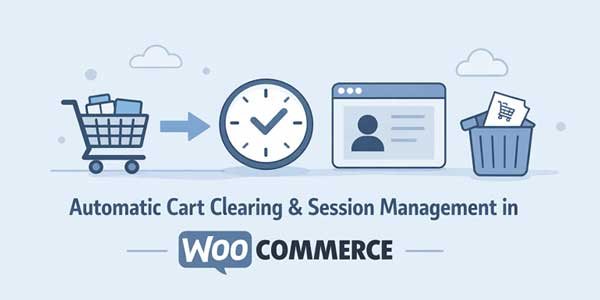
There is a side of WooCommerce store management that does not get talked about enough, and that is what happens to a customer’s cart when they just leave. No checkout, no interaction, just an abandoned cart sitting there with items in it and a session that your store is holding onto for up to 48 hours by default. For a lot of store owners, that is completely fine, but for others, especially those selling time-sensitive products, limited inventory, or running flash deals, it becomes a real problem pretty quickly.
The WooCommerce clear cart and session management is essentially about giving yourself proper control over this part of your store. You decide how long a cart lives, whether customers can wipe it themselves with one click, where they go after the cart is cleared, and whether their cart can be saved or shared for later.
All of that sounds like a lot, but once you have the right plugin installed and configured, it genuinely takes less than an hour to get everything working the way you want. This guide walks you through the full setup using the Clear Cart and Sessions for WooCommerce plugin by FmeAddons, which covers all of the above without any unnecessary complexity.
Table of Contents
Installing the Plugin and Getting Started:
Getting the plugin installed is straightforward and does not require anything beyond the standard WordPress plugin installation process. Here is how you do it:
- Purchase Clear Cart and Sessions for WooCommerce from WooCommerce.com
- Download the .zip file to your computer
- In your WordPress admin panel, go to Plugins > Add New and click Upload Plugin
- Upload the .zip file and wait for the installation to complete
- Once installed, click Activate, and the plugin is ready to configure
After activation, all the settings live under WooCommerce > Settings, and you will see a Clear Cart and Session tab appear there. Everything is managed from that one tab, which keeps things clean and easy to navigate. There are a few distinct sections inside it, and we will go through each one.
Setting Up Automatic Session Expiry:
This is the core feature of the plugin and the one most store owners come here for in the first place. The Session Expire section is where you tell WooCommerce how long a cart should remain active before it gets automatically cleared. Here is what you configure here:
- Activate: This checkbox is used to enable or disable the custom cart session timing. You have to make sure that it is checked before you want any other settings to work. In case you have not enabled it, WooCommerce will continue using its default session management, and your custom rules won’t apply.
- Time of Cart Session Expiration: You have to enter the number corresponding to how long a cart should remain active. For example, if you want carts cleared after two hours, set the Time Format to Hours and enter ‘2’ in this field.
- Expire Cart Session Regardless of User Activity: By default, WooCommerce may reset a session if a customer interacts with the site. Enabling this option ensures the cart will expire strictly after the time you’ve set, no matter if the customer is browsing, adding items, or even refreshing the page. This is especially useful for flash sales or limited stock items where you want strict session control.
- Time Format: Choose the unit for your session duration—Minutes, Hours, or Days—depending on your store operations. Shorter durations like minutes are helpful for fast-moving sales, while hours or days work for regular stores that want to give customers more time to decide.
A good practical example here is if you are running a flash sale and want cart sessions to expire every 30 minutes, so hoarded items get released back into available stock. You would set the time format to Minutes and enter 30, and the plugin handles the rest automatically.
Configuring the Empty Cart Button:
Beyond automatic clearing, the plugin also lets you add a WooCommerce empty cart button directly on the cart page so customers can clear everything themselves in one click rather than removing items one by one. The Empty Cart Button section has quite a few customization options, and it is worth going through all of them properly:
- Activate: Enable the empty cart button on the cart page
- Activate Widget: Check this if you want to place the clear cart button somewhere specific using a custom widget
- Widget Shortcode: Use the provided shortcode to drop the widget into any page or section
- Custom Button Text: Change the button label to whatever fits your store tone like “Clear Cart,” “Start Over,” or anything else
- Use Default Theme: If you just want the button to match your existing theme styling, check this and skip the manual color settings
- Custom Button Background Color and Hover Background Color: Set the color of the button and choose how it appears when a customer hovers over it
- Custom Button Text Color and Hover Text Color: Control the label color in both default and hover states
- Custom Button Padding: Enter padding values in the sequence top right bottom left, for example, 10px 10px 10px 10px
- Custom Button Border Radius: Set the corner rounding in the sequence top-left, top-right, bottom-right, bottom-left
- Custom Button Icon: Add an icon to the button to make it more visually clear what it does
- Show Confirmation Dialog: This is a small but really important one because it adds a confirmation prompt before the cart is actually cleared, so customers do not accidentally wipe everything with a misclick
The confirmation dialog option alone saves a lot of potential frustration for customers, and it is the kind of thing that is easy to overlook during setup but makes a noticeable difference in day-to-day use.
Setting Up Redirection After Cart Clearing:
Once a customer clears their cart, or if it gets cleared through the automatic session expiry, you can send them somewhere useful after that instead of leaving them with an empty cart page. If you want to do so, you need to change the settings from the Redirection Settings section, and it is quite simple to configure. Just follow these steps:
- Activate: Check this to enable redirection after cart clearing
- Redirection Address: Choose Shop to send customers back to your main shop page or select Custom if you want to redirect them to a specific page, like a sale page, a category page or a landing page you are currently promoting
- Custom Redirect URL: If you selected Custom in the previous setting, paste the full URL of the page you want customers to land on here
One of the most underrated features of this plugin may be this one, because a clear cart becomes an opportunity to get your customers to re-engage. The key factor is not missing any chance for getting a sale without seeming needy.
You can send your customers back to a deals page or even a new arrivals section right after their cart goes empty. Just don’t leave your customers staring at an empty cart, because the next step just might be clicking off your store. These may seem like small decisions, but often, they quietly affect how customers interact with your store.
Enabling Save and Share Cart Features:
This section goes a bit beyond just the WooCommerce clear cart functionality and adds two genuinely useful features for customers, which are saving their cart for later and sharing it with others. Here is how to configure both:
Save Cart Button Settings:
- Once you enable the ‘save cart’ button, you can customize its text, background color, its hover color, the color of its text, what padding applies to it, its border radius, and the icon as well, kind of similar to the empty cart button.
- Once you have saved your final modifications, customers will be able to manage their saved carts from their account dashboard, having the freedom to restore or delete them whenever they want to.
Share Cart Button Settings:
- Enable the share cart button with the same styling controls as the save button
- Customers can share their cart across Facebook, Messenger, Skype, WhatsApp, LinkedIn, Twitter, and Email, or simply copy a link
- For Facebook sharing, you will need to enter a Facebook App ID, which requires creating an app in the Facebook Developer Console first
Popup Customization:
- Set heading text for both the Save Cart and Share Cart popups
- Customize the pop-up wrapper background color, header background color, header text color, body background color, body text color, and border radius so the pop-ups match your store design
Managing Saved Carts from the Admin Side:
Once customers start saving and sharing carts, you will want to keep an eye on them from the backend as well. All saved and shared carts are accessible under WooCommerce > Saved Carts in your admin panel. From here, you can view and manage every saved cart across your store, which gives you a decent overview of what products customers are interested in but not yet purchasing, and that kind of information is actually useful when you are planning promotions or restocking decisions.
Conclusion:
Getting your WooCommerce clear cart and session management set up properly is one of those store maintenance tasks that pays off quietly over time. You get cleaner inventory control, a better customer experience on the cart page, smarter redirection after clearing, and the added value of save and share functionality that keeps customers engaged even when they are not ready to buy yet.
The Clear Cart and Sessions plugin by FmeAddons covers all of it in one place, and the configuration is straightforward enough that you can have everything running exactly the way you want it without spending half a day on it.
 About the Author:
I’m Jeff Harrison. I’ve been exploring WooCommerce for quite some time, mainly by installing plugins and observing how they perform in real stores. I dedicate considerable time to working with plugins like WooCommerce Clear Cart and similar plugins that enable store owners to enhance functionality and optimize the shopping experience. I typically evaluate what a plugin truly delivers after activation, how its pricing remains competitive over time, and whether its features function reliably in everyday operations. Marketing hype isn’t what interests me. My mission is straightforward: help store owners understand whether a plugin will genuinely benefit their store or become abandoned after initial use.












Be the first to write a comment.